Settings → Apps
The full list, icons or not. Use the menu to show system apps, and sort by install date if your version allows it.
 ImpossibleAdware remover
Get the app
ImpossibleAdware remover
Get the app
Hidden apps on Android
Apps can hide their icon, sit in a hidden folder, or disguise themselves as a system app. Here’s where to look, and how to find the hidden app that’s showing you pop-up ads.
Free to find · €4.99 to reveal & remove · no subscription
Short answer
To find hidden apps on Android, open Settings → Apps → See all apps and show system apps: it lists every installed app, even ones with no icon. Also check the launcher’s hidden apps and Secure Folder or Private space. To find the hidden app behind pop-up ads, Impossible Adware Remover catches it after about two pop-ups.
Where hidden apps live
The full list, icons or not. Use the menu to show system apps, and sort by install date if your version allows it.
Samsung, Xiaomi, Oppo and most launchers let you hide app icons. Look in home screen settings.
Apps in Samsung’s Secure Folder or Android’s Private space only appear after you unlock it.
An app named “System Service” with a gear icon, or a working QR scanner that also shows ads. It’s in plain sight in the list, and nothing tells you it’s the one.
Hidden in plain sight
Finding a hidden app is easy when you know its name. Finding the app that’s secretly showing ads is different: you’re looking at 80 apps and any of them could be it. Adware counts on that. It waits days before showing the first ad, picks a boring name, and often keeps working as the flashlight or cleaner you installed it as.
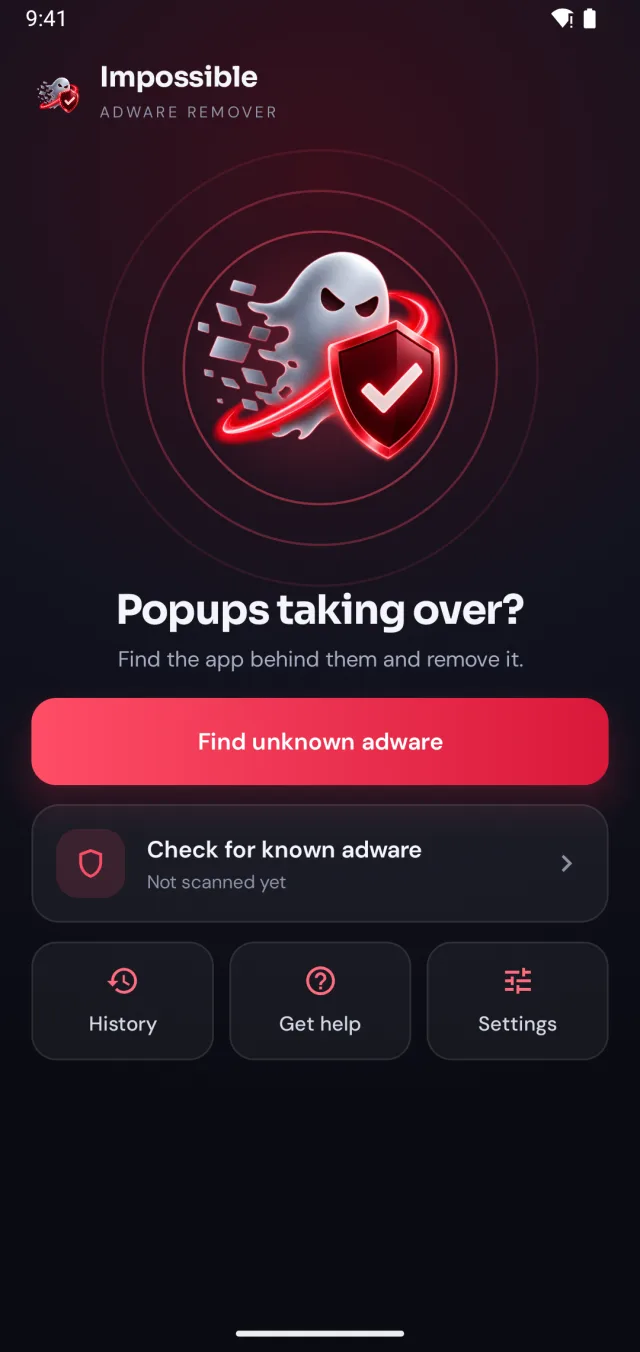
Impossible Adware Remover doesn’t look at names. It looks at what happens on your screen: when a pop-up lands, it records which app drew it, and after about two pop-ups it points straight at it.
The fix
Impossible Adware Remover doesn’t make you guess. It watches which app puts windows on top of your screen and catches it in the act.
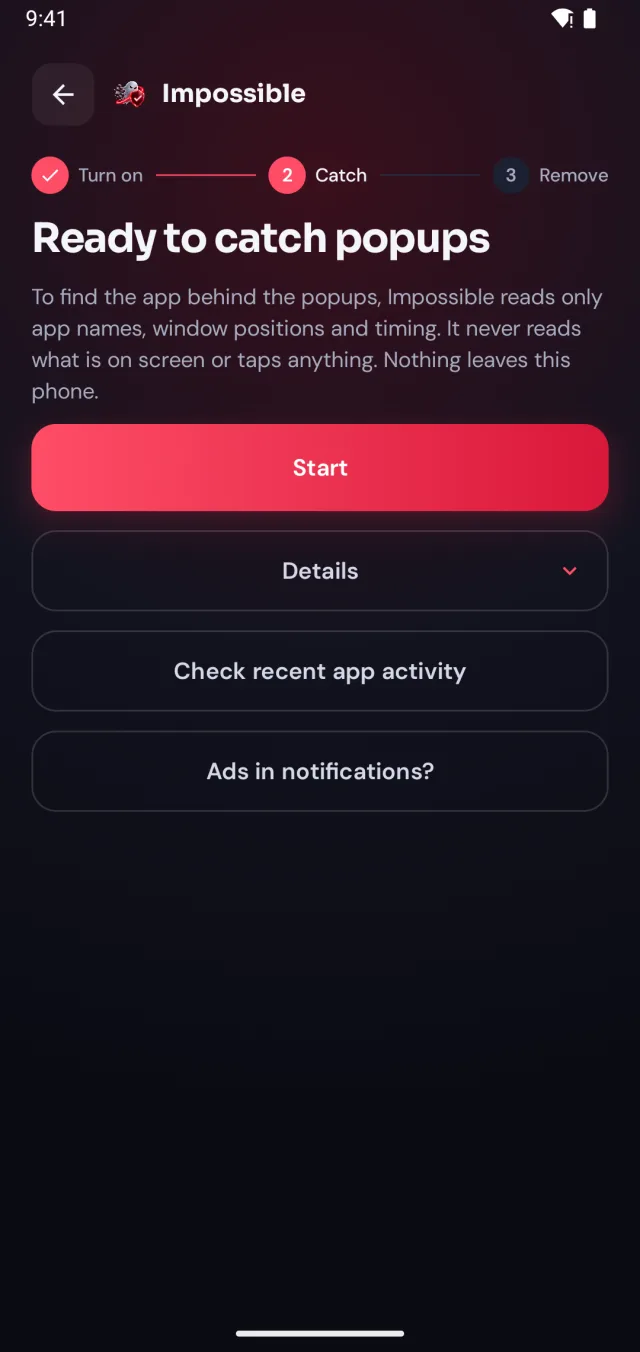
A few taps in Android’s settings, guided step by step. Impossible Adware Remover only sees which app is on screen and when, never what’s on it.
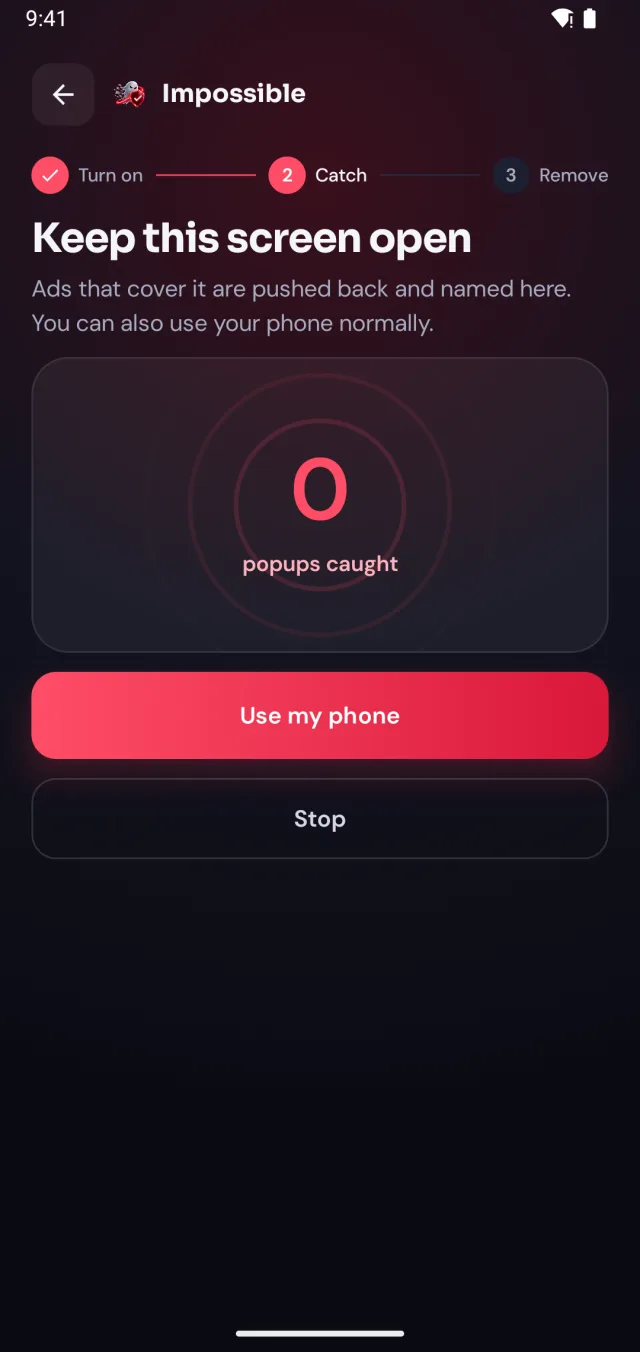
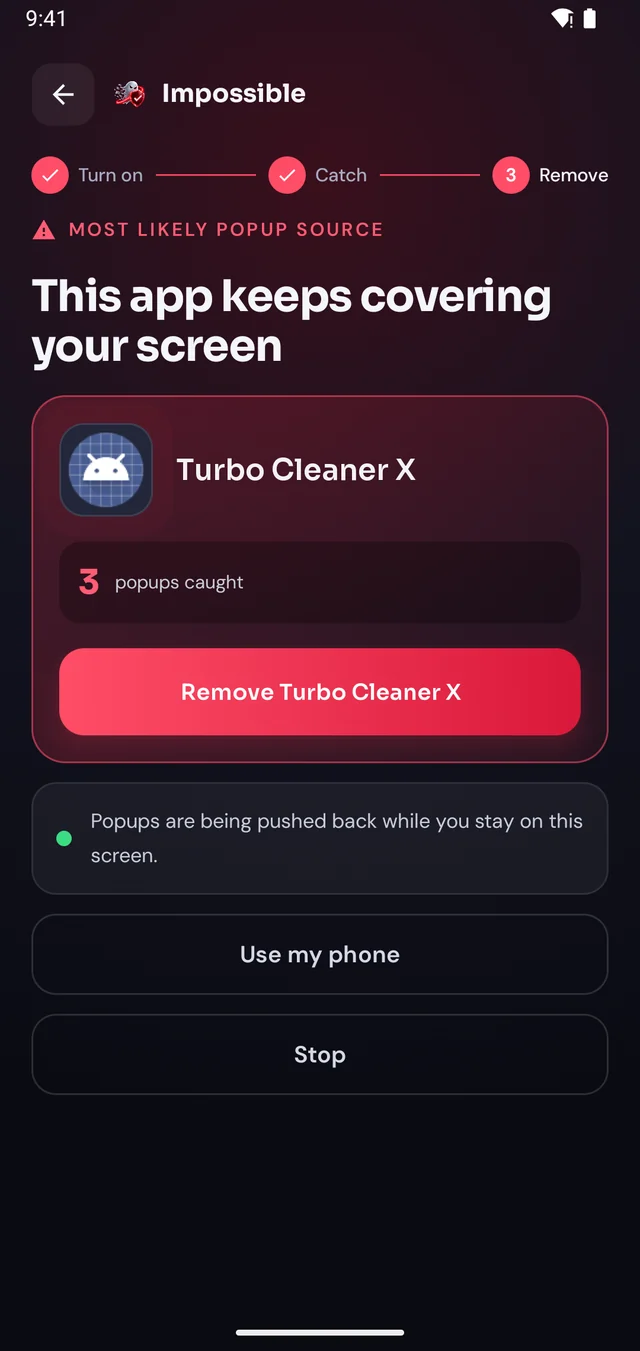
When the next pop-up lands, Impossible Adware Remover notes who sent it. After about two pop-ups it catches the app, even if it hides inside another app.
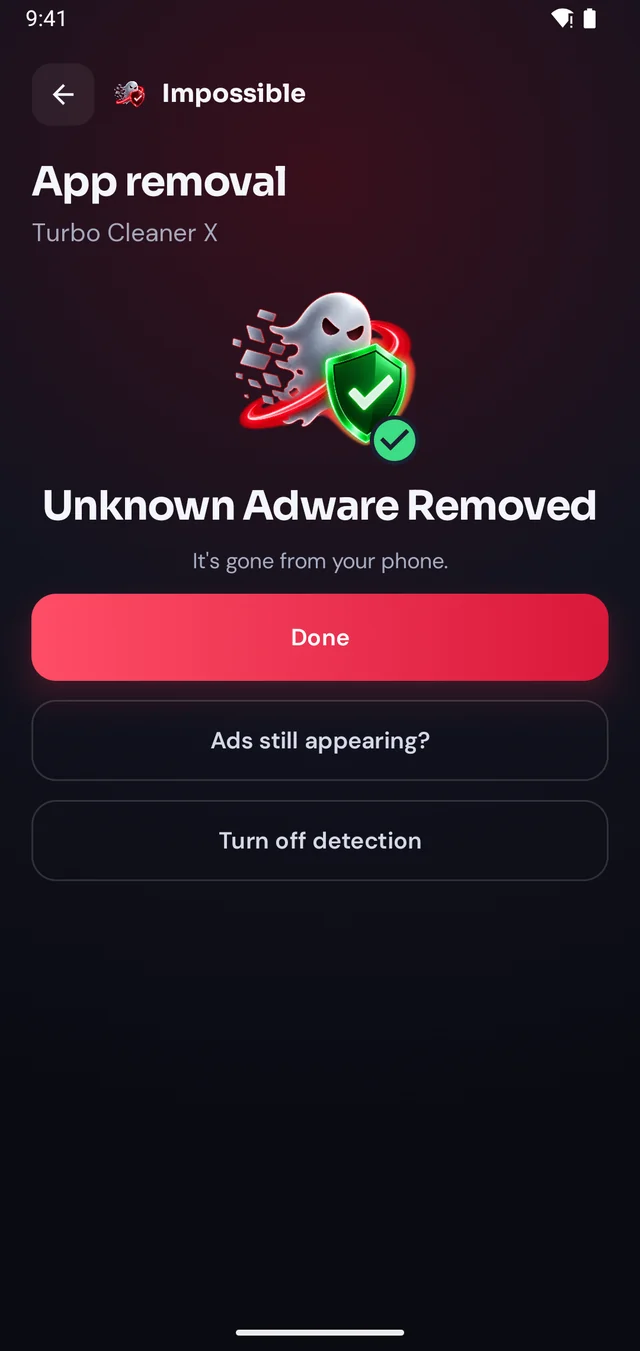
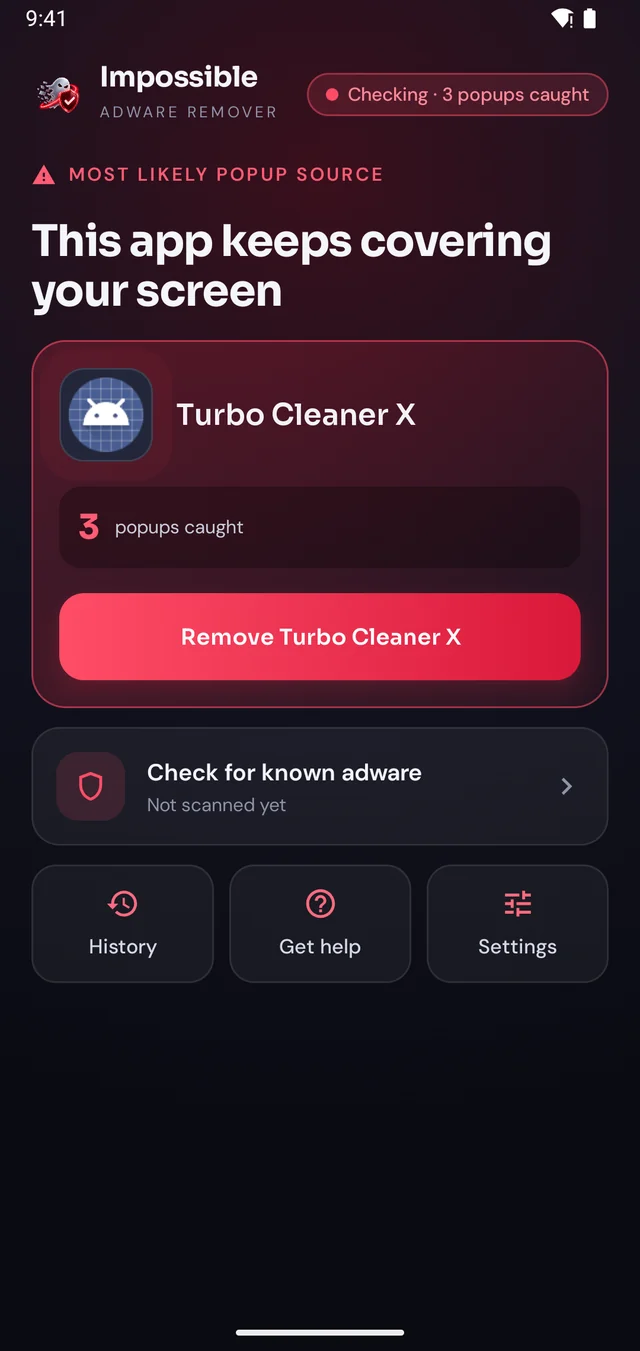
Finding it was free. Pay €4.99 once to see which app it is, then Android’s own uninstall dialog opens with a removal shield. Gone for good.
The pop-up shield
Stay on Impossible Adware Remover’s screen and every pop-up that tries to cover it is pushed back and counted. Finally, a calm screen where you can see what’s going on, find the app and remove it, without fighting your own phone.
FAQ
Open Settings → Apps (or Apps → See all apps). That list shows every installed app, including ones with no icon in the app drawer. Tap the filter or menu to show system apps too. Also check your launcher’s “Hidden apps” setting and any Secure Folder or Private space.
Hidden apps that show ads don’t just remove their icon; many sit inside an app that looks normal. The list in Settings can’t tell you which one shows the ads. Impossible Adware Remover watches which app draws each pop-up and catches it, usually after two pop-ups.
Normal apps can’t hide from the full app list, but adware can use a misleading name and icon, like “System Service”, “Google Update” or a blank name, so it blends in with real system apps.
Open the home screen settings (touch and hold an empty spot, then Settings) and find Hide apps on Home and Apps screens. Apps you hid yourself are listed there. Apps that hid their own icon still appear in Settings → Apps.
Tap it in Settings → Apps to see when it was installed and what permissions it has, especially “Display over other apps”. If you’re not sure, let Impossible Adware Remover confirm whether it’s the one showing ads before you uninstall anything.

Finding the app is free. You pay €4.99 once, only when Impossible Adware Remover has caught it. If the ads come back within 7 days, the next reveal is on us.
Get it onGoogle Play